


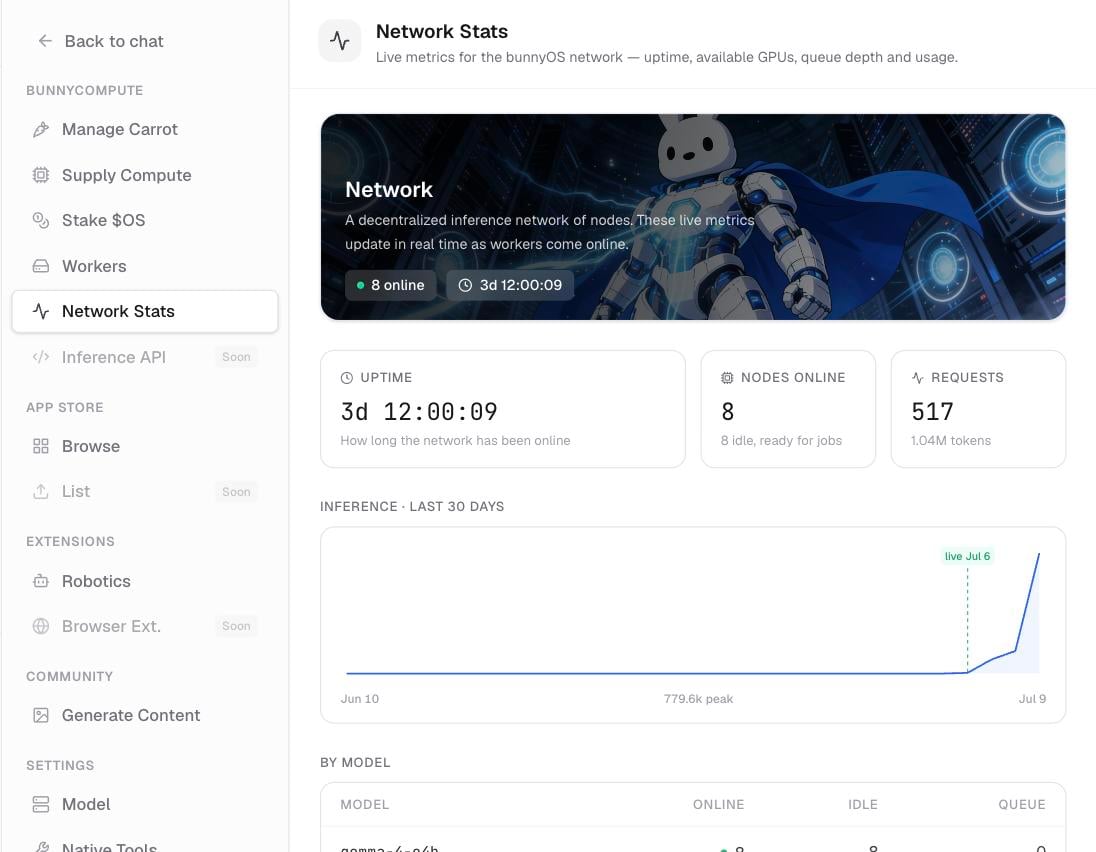
The public Network Stats screen shows how busy the network is right now.
Two ways to contribute
You can join the network in one of two ways.- A browser worker needs no install. You turn it on with one button in the app, and it runs only while its page stays open. It is the quickest way to try contributing.
- A native worker is a small command-line program you run on a spare machine. It runs full-time in the background, so it is the choice for a dedicated GPU computer.
How you earn
A cloud request costs the person who asks for it 10 Carrots. The worker that runs the job earns 8 of those Carrots, about 80%, and the network keeps the small difference. If a job fails, the requester is refunded and no one is charged for it. Your earnings land automatically in your Carrots history as Earned entries. You do not claim anything or press a button to collect. See Your Carrots to watch your balance and history.Keeping the network fast
To keep replies quick for everyone, the network checks how fast your device is when it joins. A device that is too slow is turned away with a “too slow” message, and a worker that keeps running slowly is dropped. If you see this, a few things help:- Use a computer with faster graphics or more memory.
- Close other heavy apps so more power is free for jobs.
Your privacy
Jobs run entirely on your own device. The network only hands out jobs and keeps score of the Carrots you earn. Your computer does the work locally, and nothing about a job lives on the network beyond that.Where your workers show up
Every worker you run, browser or native, appears under Settings › Workers with a live status, so you can see at a glance whether it is connected and busy. For managing workers and their keys, see Setting up a native worker. The public Network Stats screen shows how busy the whole network is at any moment, across everyone contributing.Related pages
Setting up a browser worker
Turn on the one-button browser worker and start earning while its page is open.
Setting up a native worker
Set up the full-time command-line worker for a spare GPU machine and manage its keys.
Your Carrots
Track your balance, see your Earned entries, and explore your top-up options.