

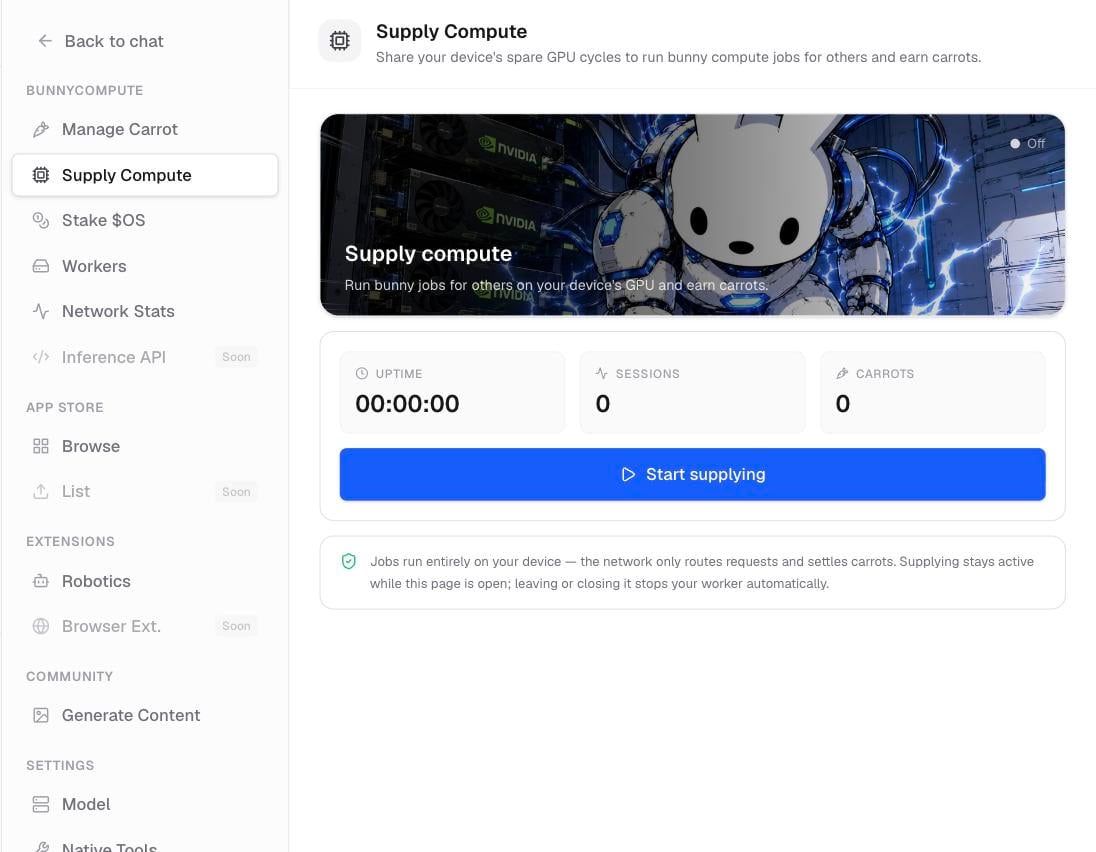
The Supply Compute panel, ready to start with a single button.
What you need
You need a recent desktop Chrome or Edge, because the worker uses your computer’s graphics. Safari, Firefox, and phones generally cannot supply compute. If your browser cannot, the app tells you so and the start button stays unavailable.Start supplying
1
Sign in and open the panel
Sign in, then go to Settings › Supply Compute. You can also get there from the Supply compute button on the Carrots screen.
2
Press Start supplying
Press Start supplying. The first time, a progress bar loads bunny’s model. This can take a moment.
3
Watch the live card
Once loaded, a live card shows a status dot that reads Online (or Serving a job while a request is running), an uptime clock, how many jobs you have served, and the Carrots you have earned.
Stop supplying
Press Stop supplying on the live card whenever you want to end. Your worker goes offline and stops taking new jobs.About the Carrots figure
The Carrot number on the live card is a running estimate for your current session. Your authoritative balance and full history live on the Carrots screen.Related pages
How contributing works
Worker types, what you earn per job, and where your stats appear.
Setting up a native worker
Set up a dedicated machine to supply compute around the clock.
Your Carrots
Check your true balance, history, and top-up options.