

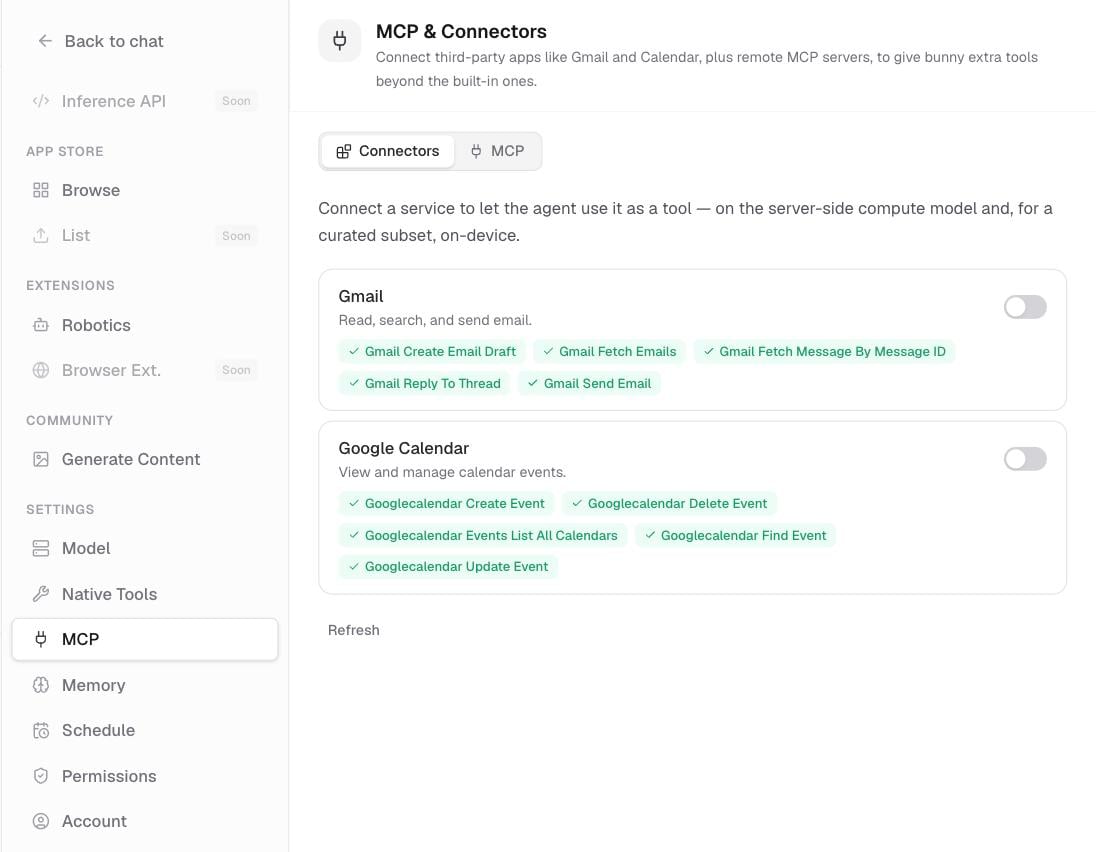
Connectors in Settings.
Whenever bunny wants to use a connector or a tool server, it asks for your approval first. See Tool approvals.
Connect an app
Connectors link bunny to apps you already use, like Gmail and Google Calendar, so it can act on them for you. Once a connector is on, you can ask bunny to read your recent emails or list your upcoming events, and it does the work in that app.1
Open Connectors
Go to Settings › Connectors.
2
Switch a service on
Flip a service on. A popup opens its own sign-in and consent screen so you can approve access.
3
Confirm it connected
When it finishes, the service shows Connected.
Add a tool server (MCP)
An MCP server is an add-on tool server that bunny connects to over the internet. Connecting one hands bunny a fresh set of tools it did not have before. This is a more advanced option, so reach for it when someone gives you a server address to add.1
Open MCP
Go to Settings › MCP.
2
Add the server
Choose Add MCP server, then give it a name and its address (a URL).
3
Sign in if needed
If the server requires a login, tick Sign in with OAuth and complete the sign-in.
Related pages
Tool approvals
How bunny asks before it acts, and the Permissions settings.
Built-in tools
The native tools bunny uses automatically, and how to turn them on or off.
Chat with bunny
The conversation itself: the composer, replies, and history.