> ## Documentation Index
> Fetch the complete documentation index at: https://docs.bunnyos.ai/llms.txt
> Use this file to discover all available pages before exploring further.
# External connections
> Give bunny extra abilities by connecting outside apps like Gmail and Google Calendar, or by adding remote MCP tool servers.
bunny already comes with a set of [built-in tools](/user/chat/built-in-tools). You can give it even more to work with in two ways: connect an outside app, or add a remote tool server. Both live in **Settings** and both need you to be signed in.
 Whenever bunny wants to use a connector or a tool server, it asks for your approval first. See [Tool approvals](/user/chat/permissions).
## Connect an app
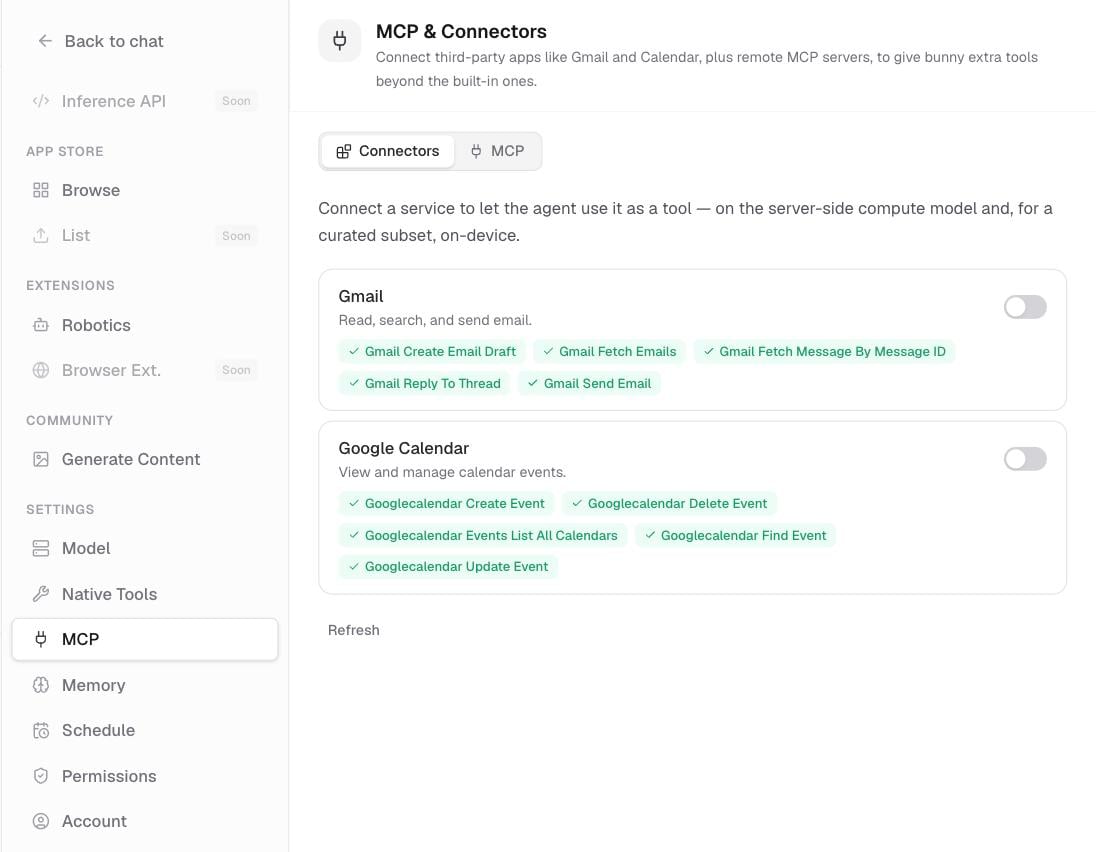
Connectors link bunny to apps you already use, like Gmail and Google Calendar, so it can act on them for you. Once a connector is on, you can ask bunny to read your recent emails or list your upcoming events, and it does the work in that app.
Go to **Settings** › **Connectors**.
Flip a service on. A popup opens its own sign-in and consent screen so you can approve access.
When it finishes, the service shows **Connected**.
Inside a connected app you can enable or disable its individual tools, so bunny only gets the abilities you want. To cut off access entirely, disconnect the service.
## Add a tool server (MCP)
An MCP server is an add-on tool server that bunny connects to over the internet. Connecting one hands bunny a fresh set of tools it did not have before. This is a more advanced option, so reach for it when someone gives you a server address to add.
Go to **Settings** › **MCP**.
Choose **Add MCP server**, then give it a name and its address (a URL).
If the server requires a login, tick **Sign in with OAuth** and complete the sign-in.
Only add tool servers you trust. A connected server can offer bunny new tools, and bunny will ask your approval before using any of them.
## Related pages
How bunny asks before it acts, and the Permissions settings.
The native tools bunny uses automatically, and how to turn them on or off.
The conversation itself: the composer, replies, and history.
Whenever bunny wants to use a connector or a tool server, it asks for your approval first. See [Tool approvals](/user/chat/permissions).
## Connect an app
Connectors link bunny to apps you already use, like Gmail and Google Calendar, so it can act on them for you. Once a connector is on, you can ask bunny to read your recent emails or list your upcoming events, and it does the work in that app.
Go to **Settings** › **Connectors**.
Flip a service on. A popup opens its own sign-in and consent screen so you can approve access.
When it finishes, the service shows **Connected**.
Inside a connected app you can enable or disable its individual tools, so bunny only gets the abilities you want. To cut off access entirely, disconnect the service.
## Add a tool server (MCP)
An MCP server is an add-on tool server that bunny connects to over the internet. Connecting one hands bunny a fresh set of tools it did not have before. This is a more advanced option, so reach for it when someone gives you a server address to add.
Go to **Settings** › **MCP**.
Choose **Add MCP server**, then give it a name and its address (a URL).
If the server requires a login, tick **Sign in with OAuth** and complete the sign-in.
Only add tool servers you trust. A connected server can offer bunny new tools, and bunny will ask your approval before using any of them.
## Related pages
How bunny asks before it acts, and the Permissions settings.
The native tools bunny uses automatically, and how to turn them on or off.
The conversation itself: the composer, replies, and history.