> ## Documentation Index
> Fetch the complete documentation index at: https://docs.bunnyos.ai/llms.txt
> Use this file to discover all available pages before exploring further.
# Chat with bunny
> Send messages, read streaming replies, follow tool cards, and manage your chat history and shortcuts when talking with bunny.
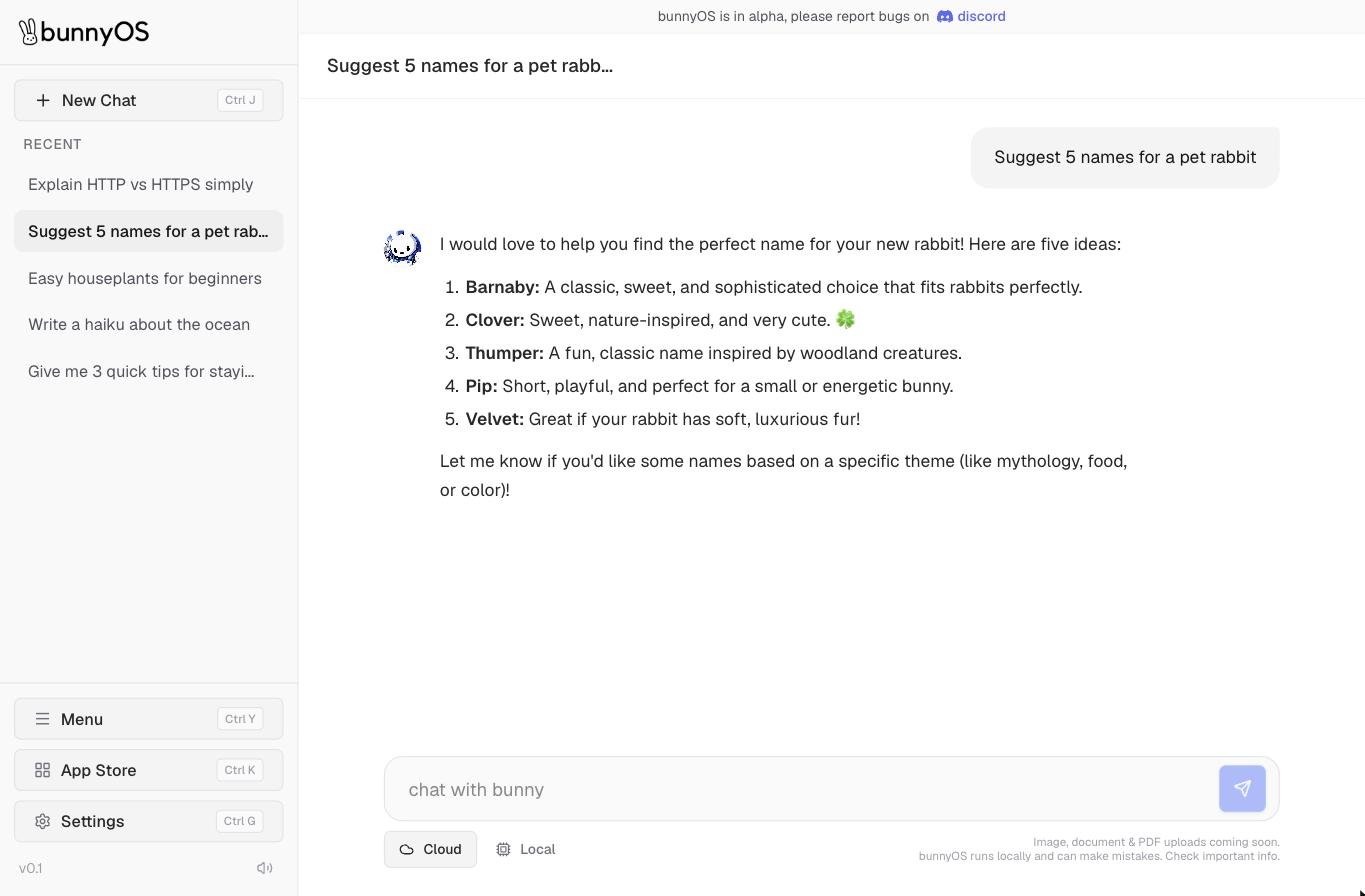
 Chat is where you and bunny actually talk. You type a message, bunny replies, and the whole conversation is saved so you can pick it back up later. This page covers the conversation itself.
 ## Send a message
Click the **chat with bunny** box at the bottom and type your message.
Your message appears and bunny starts replying. To add a new line without sending, press **Shift+Enter**.
You can ask bunny anything: a question, a request, or a task to work through with you.
## How replies work
Replies stream in word by word, so you see the answer form in real time. A thinking indicator shows while bunny is working something out before it writes.
bunny writes in markdown, so replies can include lists, tables, code blocks, and clickable links, all formatted for easy reading.
To cut a reply short, press the square **Stop** button. bunny stops generating right away and keeps whatever it had written so far, so you can send a follow-up.
### Tool cards
Sometimes bunny does more than talk. When it uses a tool, an expandable tool card appears inside the reply. Click the card to open it and see what bunny did. To learn which tools bunny can use and how to turn them on or off, see [Built-in tools](/user/chat/built-in-tools).
Every reply comes from the same bunny, but bunny can run privately on your own device or in the bunnyCompute cloud. See [Where bunny runs](/user/chat/on-device-vs-cloud) to choose and switch.
## Your chat history
Every conversation is saved to your account and auto-titled from your first message, so it is easy to find later. Your saved chats live in the sidebar.
* **New Chat** starts a fresh conversation.
* The **Recent** list in the sidebar switches between your saved chats.
* To rename a chat, click the pencil icon or double-click its title.
* To delete a chat, click the trash icon.
* Clicking the bunny logo returns you home to a new chat.
## Keyboard shortcuts
Move around faster with these shortcuts. Hold **Cmd** on Mac or **Ctrl** on Windows, then press the key.
| Shortcut | What it does |
| ------------ | ---------------- |
| Cmd/Ctrl + J | New Chat |
| Cmd/Ctrl + Y | Menu / Carrots |
| Cmd/Ctrl + K | App Store |
| Cmd/Ctrl + I | Generate |
| Cmd/Ctrl + E | Connectors |
| Cmd/Ctrl + G | Settings / Model |
| Cmd/Ctrl + B | Account |
## Interface sounds
bunny can play small click and open sounds as you use the app. To mute or unmute them, click the speaker icon at the bottom of the sidebar.
Sending images, documents, and PDFs in chat is coming soon.
## Related pages
Run bunny privately on your device or in the cloud, and switch anytime.
See the tools bunny uses automatically and turn them on or off.
Browse and run mini-apps right inside bunnyOS.
## Send a message
Click the **chat with bunny** box at the bottom and type your message.
Your message appears and bunny starts replying. To add a new line without sending, press **Shift+Enter**.
You can ask bunny anything: a question, a request, or a task to work through with you.
## How replies work
Replies stream in word by word, so you see the answer form in real time. A thinking indicator shows while bunny is working something out before it writes.
bunny writes in markdown, so replies can include lists, tables, code blocks, and clickable links, all formatted for easy reading.
To cut a reply short, press the square **Stop** button. bunny stops generating right away and keeps whatever it had written so far, so you can send a follow-up.
### Tool cards
Sometimes bunny does more than talk. When it uses a tool, an expandable tool card appears inside the reply. Click the card to open it and see what bunny did. To learn which tools bunny can use and how to turn them on or off, see [Built-in tools](/user/chat/built-in-tools).
Every reply comes from the same bunny, but bunny can run privately on your own device or in the bunnyCompute cloud. See [Where bunny runs](/user/chat/on-device-vs-cloud) to choose and switch.
## Your chat history
Every conversation is saved to your account and auto-titled from your first message, so it is easy to find later. Your saved chats live in the sidebar.
* **New Chat** starts a fresh conversation.
* The **Recent** list in the sidebar switches between your saved chats.
* To rename a chat, click the pencil icon or double-click its title.
* To delete a chat, click the trash icon.
* Clicking the bunny logo returns you home to a new chat.
## Keyboard shortcuts
Move around faster with these shortcuts. Hold **Cmd** on Mac or **Ctrl** on Windows, then press the key.
| Shortcut | What it does |
| ------------ | ---------------- |
| Cmd/Ctrl + J | New Chat |
| Cmd/Ctrl + Y | Menu / Carrots |
| Cmd/Ctrl + K | App Store |
| Cmd/Ctrl + I | Generate |
| Cmd/Ctrl + E | Connectors |
| Cmd/Ctrl + G | Settings / Model |
| Cmd/Ctrl + B | Account |
## Interface sounds
bunny can play small click and open sounds as you use the app. To mute or unmute them, click the speaker icon at the bottom of the sidebar.
Sending images, documents, and PDFs in chat is coming soon.
## Related pages
Run bunny privately on your device or in the cloud, and switch anytime.
See the tools bunny uses automatically and turn them on or off.
Browse and run mini-apps right inside bunnyOS.